Guided Cloud Setup
The guided installer can provision a hosted AutoMem backend for you and capture its endpoint and API key automatically — no dashboards, no copy-pasting tokens between terminals. This page covers that Hosted Cloud path in depth: how each provider flow works, what the installer captures, and how to script it.
Reach it by running the installer and choosing Hosted Cloud at the first prompt:
curl -fsSL get.automem.ai | sh# or, if Node 20.19+ is already installed:npx @verygoodplugins/mcp-automem install? Where should AutoMem run?❯ Hosted Cloud InstaPods or Railway — guided deploy Local Docker Clone AutoMem and start Docker Compose on this machine Existing Endpoint Use an AutoMem URL you already haveChoose Hosted Cloud for always-on memory that follows you across devices and machines. For an on-machine stack instead, see Quick Start → Local Docker and Docker & Local Dev.
Pick a provider
Section titled “Pick a provider”After choosing Hosted Cloud, the installer asks how to stand it up:
? How should we stand up your hosted AutoMem?❯ InstaPods open the setup page — it deploys AutoMem and emails your URL + key Railway (guided) sign in with the railway CLI, deploy from the terminal, then auto-capture keys Other — I already have a URL + key already deployed somewhere; just paste your endpoint + token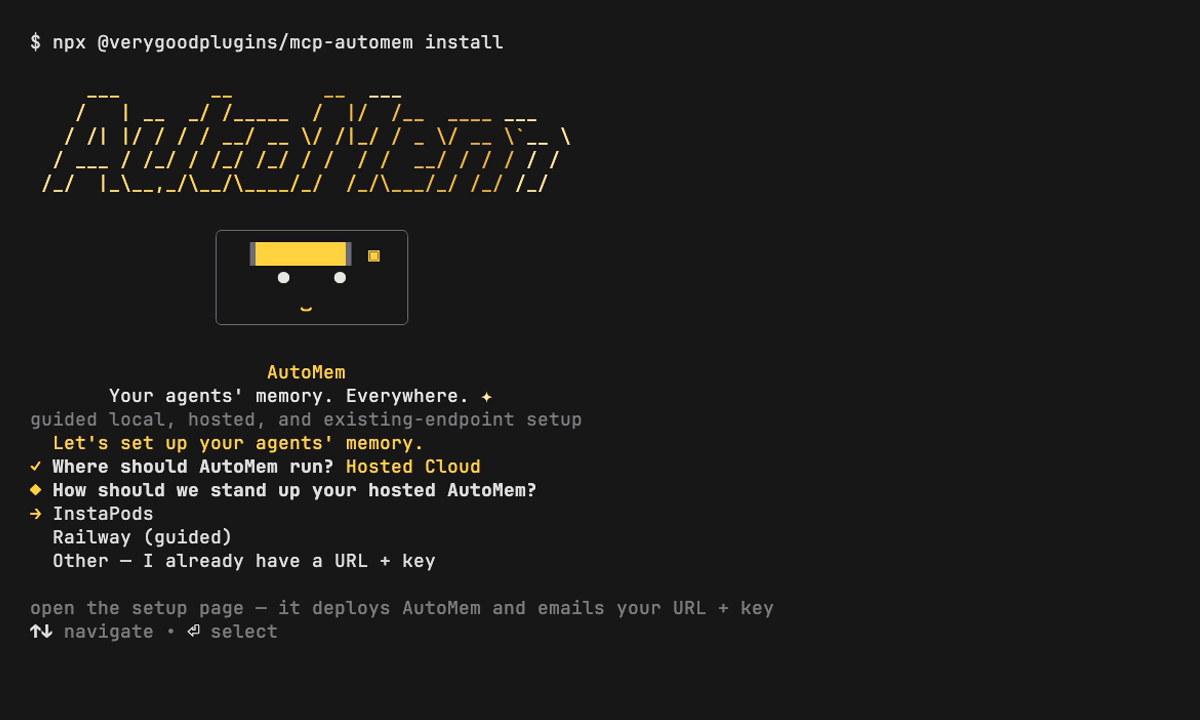
| Provider | How it deploys | Billing | Best for |
|---|---|---|---|
| InstaPods | Opens the setup page; it deploys AutoMem and emails your endpoint + key | $15/mo flat (details) | Fastest hosted path, HTTPS + custom domains, zero infra |
| Railway (guided) | Signs in with the railway CLI and deploys the template from the terminal | Usage-based (details) | Terminal-native deploys, fine-grained control |
| Other | You paste an endpoint + token you already have | — | An AutoMem instance you already run |
InstaPods
Section titled “InstaPods”- The installer opens the InstaPods AutoMem setup page. Choose the Grow plan ($15/mo flat) and complete checkout.
- InstaPods deploys AutoMem and emails your API URL + key.
- Paste them back at the prompt:
? AutoMem API URL › https://your-automem.instapods.app? AutoMem API key (leave blank if this endpoint does not require one) › ••••••••The installer verifies the endpoint’s /health before touching any agent config.
Railway (guided)
Section titled “Railway (guided)”- The installer signs you in through the
railwayCLI (it installs/uses the CLI and opens a browser to authenticate). - It deploys the AutoMem template straight from the terminal, then auto-captures the endpoint and token once the service is healthy.
- If the CLI can’t finish in your environment, it falls back to a browser deploy and then asks you to paste the URL + key, exactly like the InstaPods flow.
Reuse vs. fresh deploy
Section titled “Reuse vs. fresh deploy”The installer has a reuse path — if a provider reports existing AutoMem deployments, it lists them and lets you reuse one (fetching that deployment’s credentials) instead of paying for a new deploy. Any billable deploy is gated behind an explicit confirmation that names the plan.
What the installer captures
Section titled “What the installer captures”Once the backend is healthy, the installer:
- Captures the endpoint + token from the provider (or from what you pasted).
- Writes them to a
.envin the current directory (AUTOMEM_API_URL, plusAUTOMEM_API_KEYif the endpoint needs one). - Wires your agents — review the plan, approve, and it registers the MCP server for each selected agent, backing up every file it changes with a
.bak.
Nothing is written until you approve the plan, so a cloud run is as safe to preview as a local one.
Customize and script it
Section titled “Customize and script it”Every prompt has a flag and an environment variable, so you can pre-answer the cloud questions or run the whole thing unattended.
# Deploy to a hosted provider, fully interactivecurl -fsSL get.automem.ai | AUTOMEM_INSTALL_TARGET=cloud sh
# Pick the provider up frontcurl -fsSL get.automem.ai | \  AUTOMEM_INSTALL_TARGET=cloud \  AUTOMEM_CLOUD_PROVIDER=instapods sh
# I already deployed — capture an endpoint without provisioningcurl -fsSL get.automem.ai | \  AUTOMEM_INSTALL_TARGET=existing \  AUTOMEM_API_URL=https://memory.example \  AUTOMEM_API_KEY=sk-... \  AUTOMEM_YES=1 sh
# Preview the whole plan, write nothingcurl -fsSL get.automem.ai | AUTOMEM_DRY_RUN=1 sh
The same flags work on the npm package, e.g. npx @verygoodplugins/mcp-automem install --target cloud --cloud-provider railway.
| Flag | Environment variable | Purpose |
|---|---|---|
--target | AUTOMEM_INSTALL_TARGET | cloud, local, or existing |
--cloud-provider | AUTOMEM_CLOUD_PROVIDER | instapods, railway, or other |
--endpoint | AUTOMEM_API_URL | AutoMem HTTP API endpoint (for existing/other) |
--api-key | AUTOMEM_API_KEY | Bearer token for authenticated endpoints |
--clients | AUTOMEM_CLIENTS | Agents to wire after deploy: codex,claude-code,cursor,openclaw,hermes |
--no-agent-install | AUTOMEM_NO_AGENT_INSTALL=1 | Provision the endpoint only; skip agents |
--yes / -y | AUTOMEM_YES=1 | Apply the reviewed plan without prompting |
--dry-run | AUTOMEM_DRY_RUN=1 | Print the plan, write nothing |
Verify
Section titled “Verify”Confirm the hosted backend is healthy:
curl https://your-automem-url/health \ -H "Authorization: Bearer YOUR_AUTOMEM_API_TOKEN"{ "status": "healthy", "falkordb": "connected", "qdrant": "connected", "memory_count": 0, "enrichment": { "status": "running", "queue_depth": 0 }}"qdrant": "disconnected" (with "status": "degraded") is expected if you haven’t configured Qdrant — AutoMem degrades to graph-only mode. See Quick Start → Verify it worked for the full field reference and a first end-to-end memory test.
Troubleshooting
Section titled “Troubleshooting”| Symptom | Likely cause | Fix |
|---|---|---|
| Railway CLI sign-in stalls | No browser / restricted shell | The installer falls back to a browser deploy; finish there and paste the URL + key |
ECONNREFUSED after a Railway deploy | Railway assigned memory-service a different port than other services expect | Set PORT=8001 explicitly on memory-service (Railway guide) |
401 Unauthorized on /health | Wrong/missing token | Re-check the key the provider issued; provide it without a Bearer prefix |
| Installer can’t find your new deploy | Credentials not ready yet | Re-run the installer, choose Other — I already have a URL + key, and paste the endpoint + token |
| Charged for a second deploy | Guided Railway runs always deploy fresh — reuse-detection is not wired up yet | Use Other and paste the existing deployment’s URL + key instead of re-running the guided deploy |
Next steps
Section titled “Next steps”- Connect more agents — Platform Installers and the Platform Guides.
- Deep deployment docs — InstaPods and Railway.
- Production hardening — Backup & Recovery and Health Monitoring.